
As already mentioned in my last post, the Windows app is approaching GA pretty soon. If you haven’t read it yet, you can find it here: Windows app goes GA soon – prepare now – Everything Digital Workplace (stoked4workplace.com)
So, since we have still some time left before we see the app going GA, let’s prepare some Security/DLP related configurations for the Windows app on iOS and iPadOS. The great part here is, that the app will support MAM (Mobile Application Management). Read the announcement here: New Windows 365 features help provide a more secure workspace | Windows IT Pro Blog (microsoft.com)
So, let’s get started and create some necessary configurations.
- Create a App protection policy
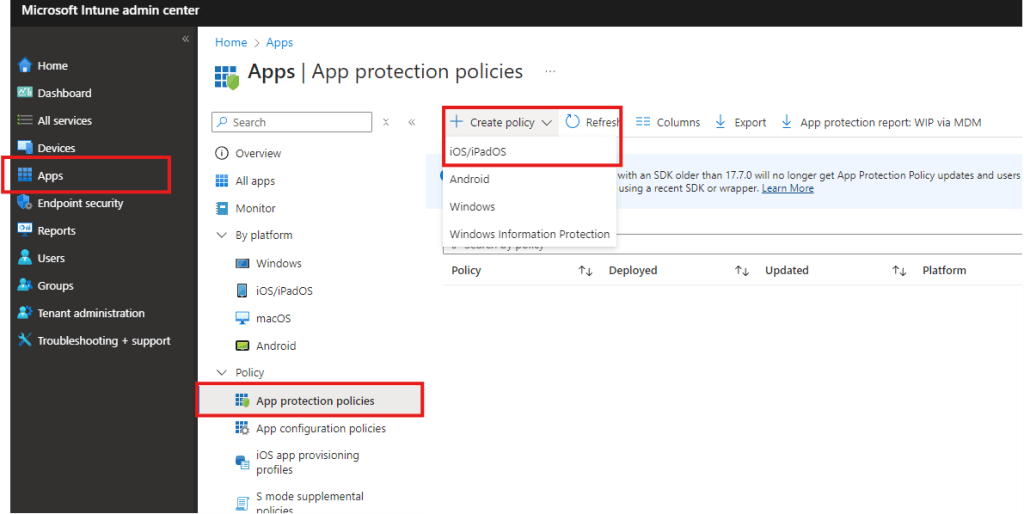
First, make sure to create a app protection policy by going to your MS Intune admin center -> Apps -> App protection policies. Select “Create policy” and select “iOS/iPadOS”.

You’ll land on the screen above. Let’s give our new policy a name. In my case it will be “Windows App iOS/iPadOS”. Confirm by selecting “Next”.
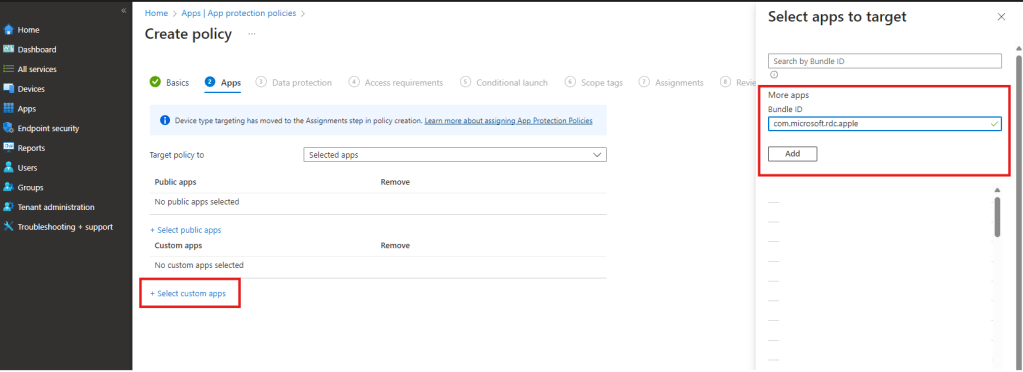
Since the app has not been published yet by Microsoft to the public Apple App Store, we have to proceed adding the current bundleID “com.microsoft.rdc.apple” Microsoft uses for the app distribution via TestFlight to the list of our custom apps:
After you added the app to the custom apps list, make sure to select it and close the dialog. Click “Next” to proceed with the next step. In the next steps, you configure and assign the app protection policies based on your security and DLP strategy. As those settings are mostly different between each enterprise, we’ll not cover them in details here. However, don’t forget to assign the newly created policy to the desired group.
- Create a App configuration policy

Next step is to create the App Configuration policy. Again, go to your MS Intune admin center -> Apps -> App configurations policies. Click on “Add” and select “Managed apps” in the list:
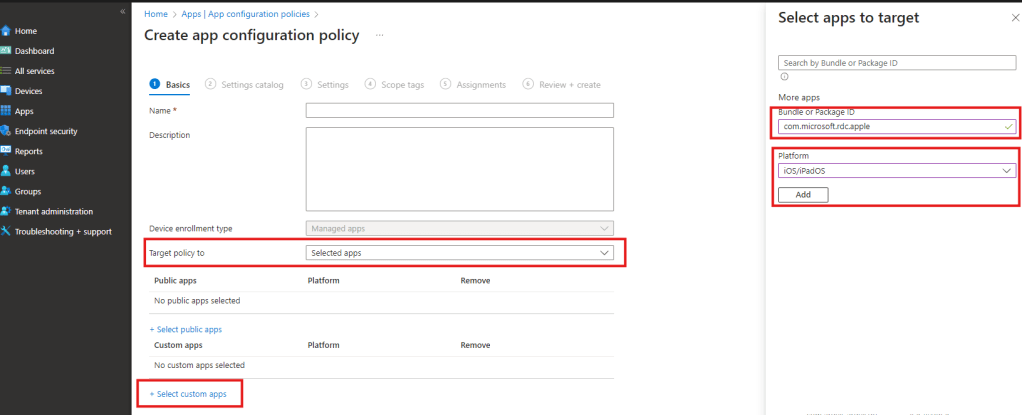
The next step is similar to the app protection policy, but with some other options in addition. First, make sure to give your new app config policy a name. In the same screen, make sure to select “Selected apps” in the field “Target policy to” and click on “+ Select custom apps”, add your app here for the Platform “iOS/iPadOS” with the same bundleID “com.microsoft.rdc.apple”. Select the added custom app, close the dialog and proceed with “Next”.

Now comes the more interesting part. The Windows app (and the Remote Desktop Mobile app by the way too) support some key value pairs that can be configured to set the necessary redirection settings. In my case, I just want to restrict the local drive redirection, so I’ll set the value “drivestoredirect” to “0“. All other redirections are fine in my case, so I’ll let them set to “1“. Again, save your configuration and proceed to the next step and assign the newly created policy to your desired target group(s).
You can find an overview and the explanation for each of the key value pair settings here:
The cool thing is, that the app receives the newly created policy/config or even a policy/config change in a short period of time, and the user is even prompted to reconnect once the new policy/config apply. In my case it didn’t take longer than 5-10 mins. to see the change being applied on my endpoint. Let’s have a look, how it looks like on a iPad for example:
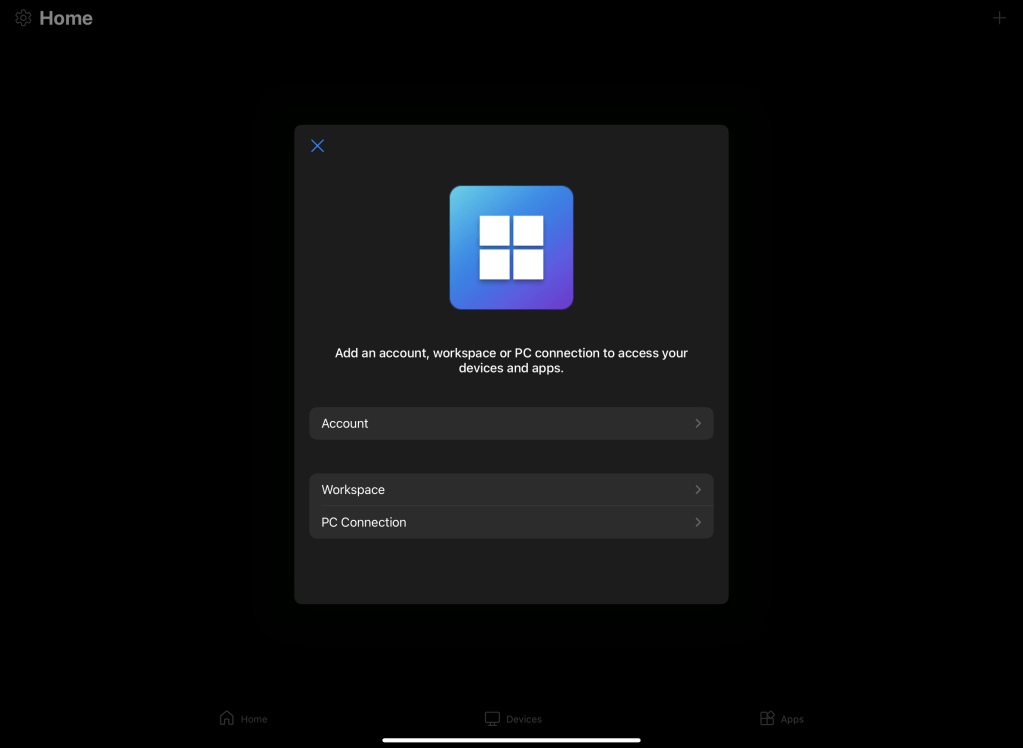
Let’s start the app (make sure to have the latest build installed via TestFlight on your test device). Select Account and login with your Entra account.
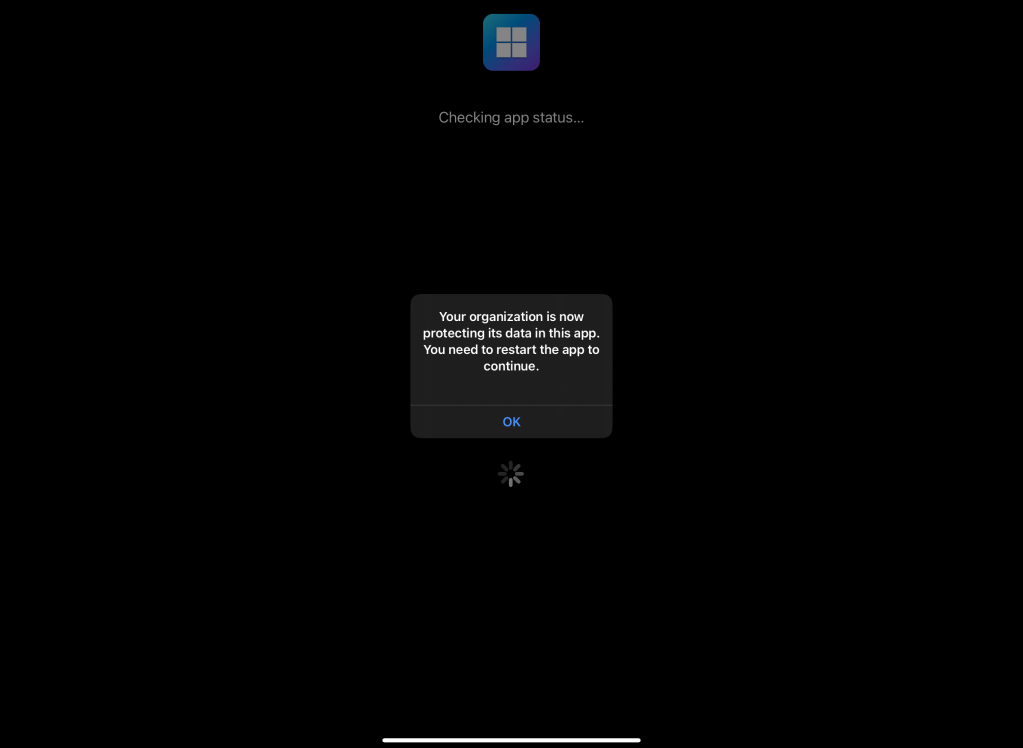
On a successful login and both policies we created before targeted correctly, you should see the following screen and the app will close after hitting “OK”.
Restart the app and start a connection to your desired endpoint. I’ll be testing on my W365 machine.
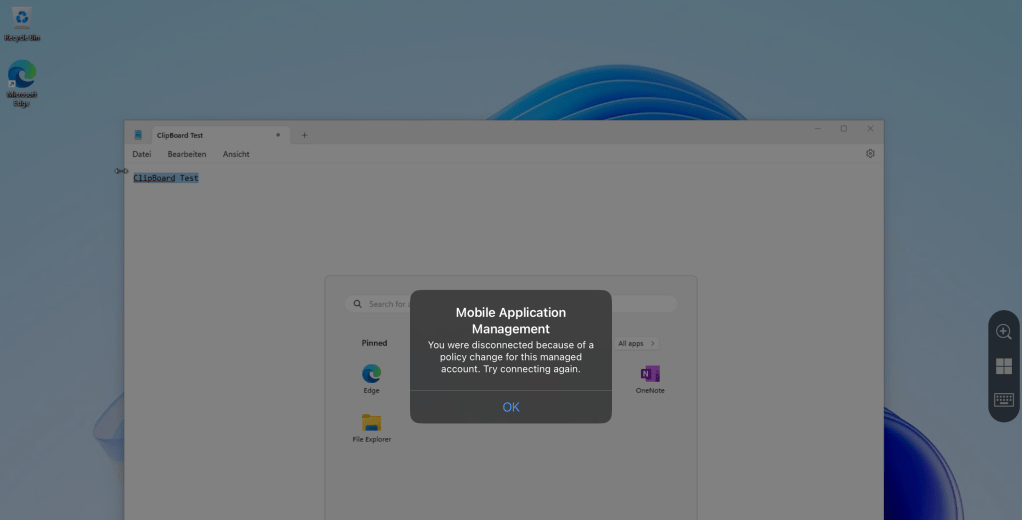
Finally, if everything works as expected, you can try changing some of the redirection settings. Once you change for example the previously created app configuration policy and the key value pair “drivestoredirect” form “0” to “1“, you should see the message from the above screenshot to popup after certain time, forcing you to restart the connection to your machine in order to apply the newly created configuration.
Note: This is part one of this blog post series. In the next part we’ll focus on how to apply different policies and configs for managed vs. unmanaged devices for the same app. So, stay tuned for the next episode!
Conclusion
From my perspective MAM gives IT pros a wonderful way to configure desired security and DLP settings for corporate distributed apps, but also for apps that gives end users access to corporate resources from personal devices. Make sure to test it out for the Windows app and prepare before it rolls out.
Important! If you read carefully, you’ve seen that we use the following bundleID and added it as a custom app: com.microsoft.rdc.apple
This is the bundleID currently being used for distribution via TestFlight. If you check out my previous blog post, you’ll notice that Microsoft plans to replace the current Remote Desktop apps with the new Windows app. This suggests, that the bundleID we used for testing here will not work for the Windows app that comes from the public store as Microsoft will likely reuse and keep the existing bundleID that is being used for the Remote Desktop app today. If this will be the case (which is pretty obviously), we’ll have to adjust our created policies at the time when the Windows app goes GA on the public store and replaces the Remote Desktop app.




 Everything Digital Workplace
Leave a Reply