Hi there. I hope you all had a good start into the new year!
To kick off the year with a fresh post, let’s get started with something that really got a lot of attention at MS Ignite back in November 2024.
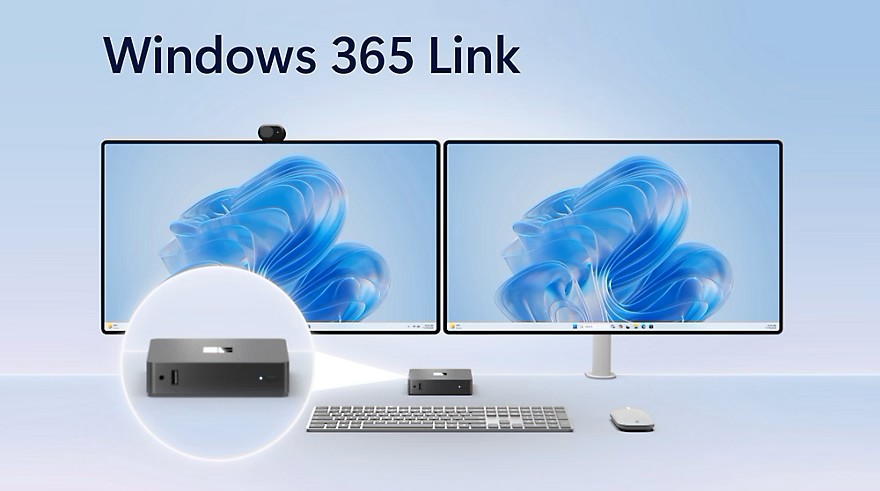
Microsoft announced Windows 365 Link. The first Windows 365 Cloud PC hardware device that lets users connect directly to their Windows 365 Cloud PC. A device that is secure by design and enables IT organizations to deliver connectivity to Windows 365 Cloud PC’s at a totally new level of simplicity for their end users.
Read the full announcement here: Windows 365 Link—the first Cloud PC device for Windows 365
Let’s dive in. This is the first post where we’ll go over the unboxing, usage of the endpoint, and potential use cases. In a later post, I’ll cover some technical aspects regarding enrollment, management via Microsoft Intune, etc., in more detail.
Important: At the moment of writing this post, Windows 365 Link is in the early stages of public preview. The hardware is expected to remain unchanged when it goes GA (currently scheduled for April 2025). However, please be aware that everything shown here regarding the OS, UX, and other software-related aspects is subject to change during and after the public preview. Anyway, I think it’s a good start to get an overview of the endpoint, its current capabilities, and potential use cases in the enterprise.
In case you’re intersted and want to learn more, make sure to visit here for more details:
What is Windows 365 Link? | Microsoft Learn
Unboxing
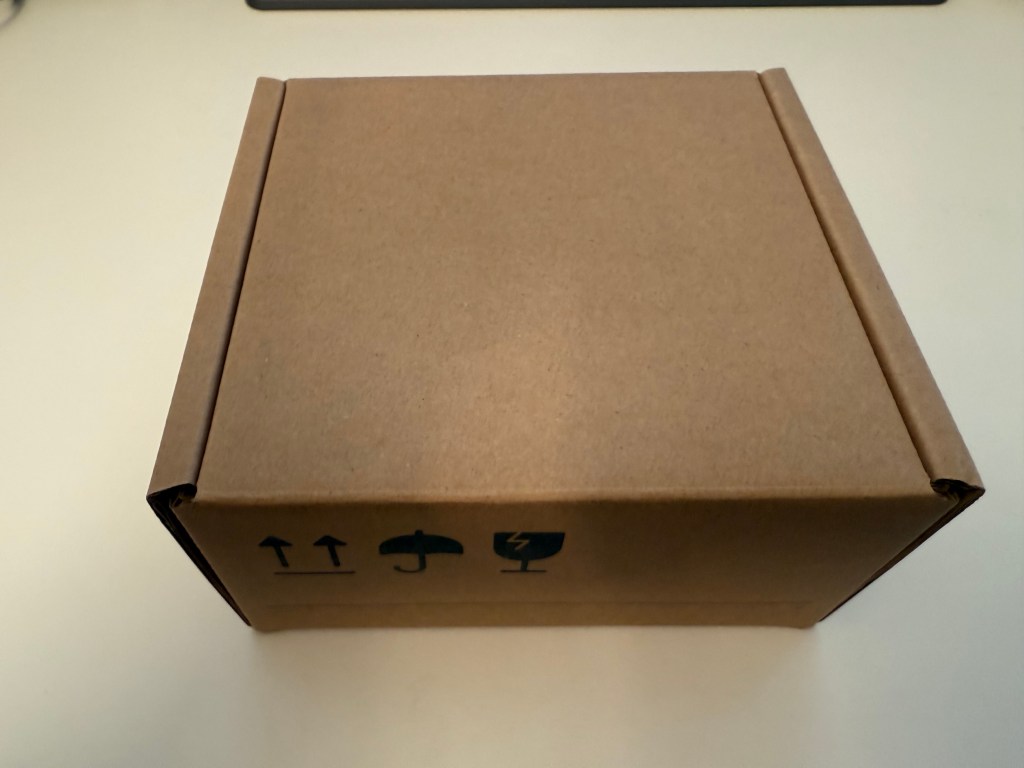
The device comes in a tiny box:
Top:
Bottom:
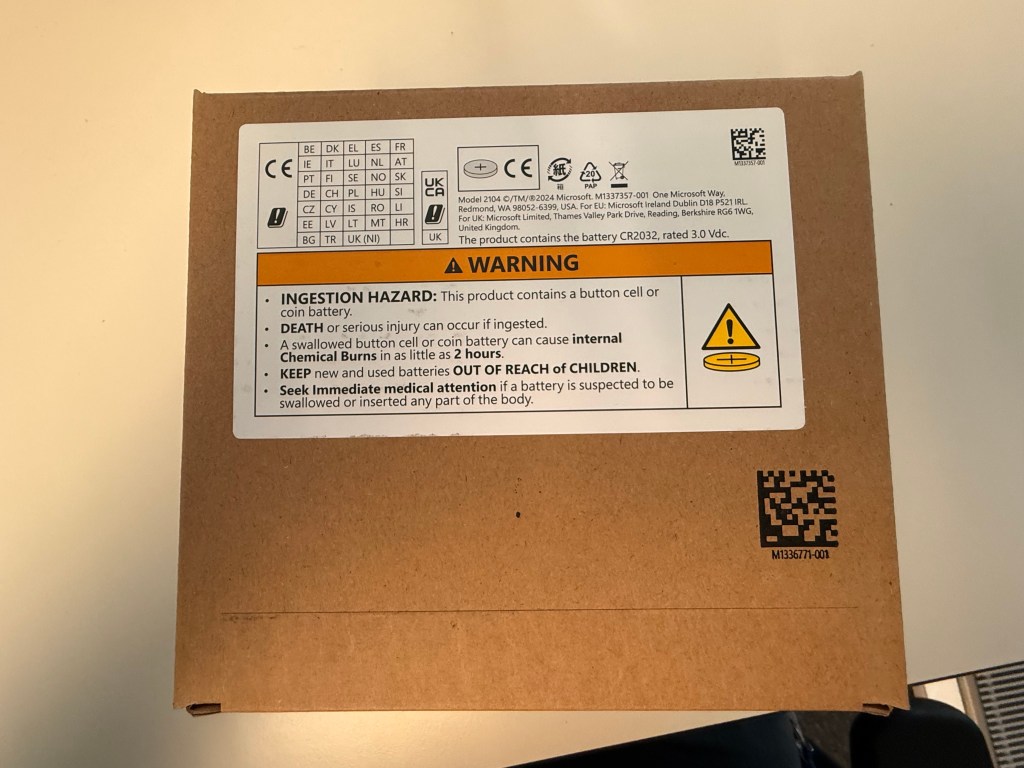
A small but very important feature for us is that the box includes a sticker with all relevant information (serial number, etc.) about the device inside the box. It also has a barcode for all of this information. This will help streamline some processes a lot in the future.

Let’s open the box and have look what we’ll find inside 🙂
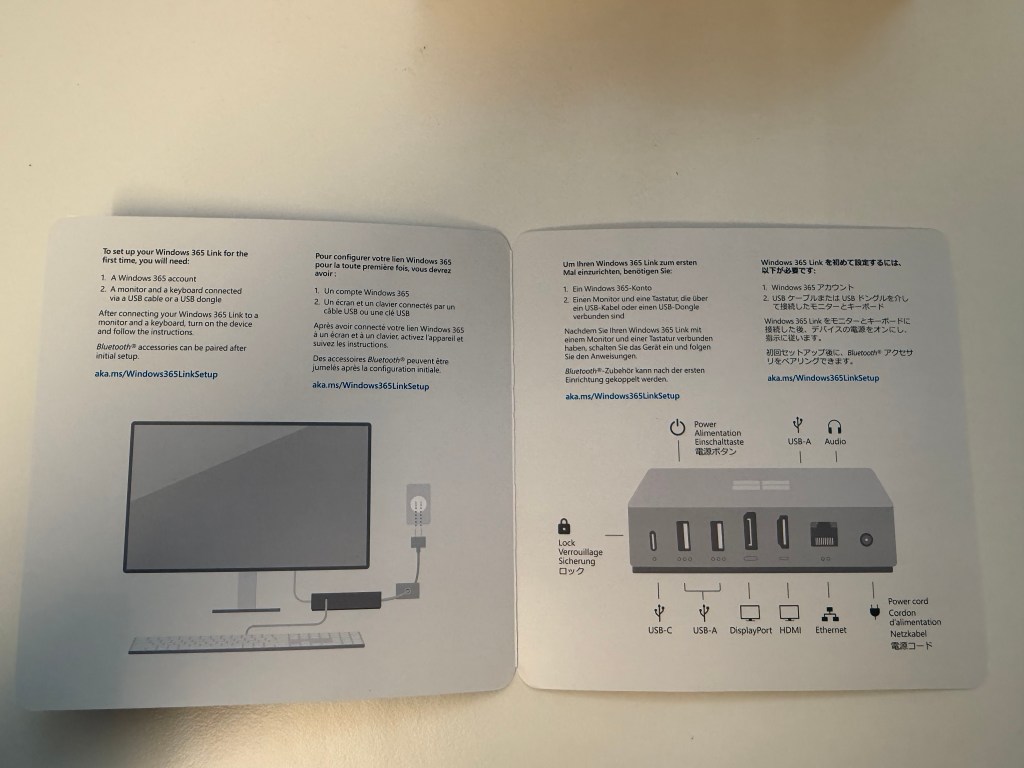
The first thing is a small info flyer. Let’s unfold.

The flyer features the most important information about the device, its connection methods, and available ports.
This shouldn’t be underrated, as this information will also help streamline the setup/installation process in the future. Believe it or not, during our first tests, even a regular end user was able to set it up without any help from IT. We’ll cover this in more detail later. Let’s move on…
The most important thing – the holy grail 🙂
Here comes the device itself. Windows 365 Link comes wrapped in a tiny protective paper covering.
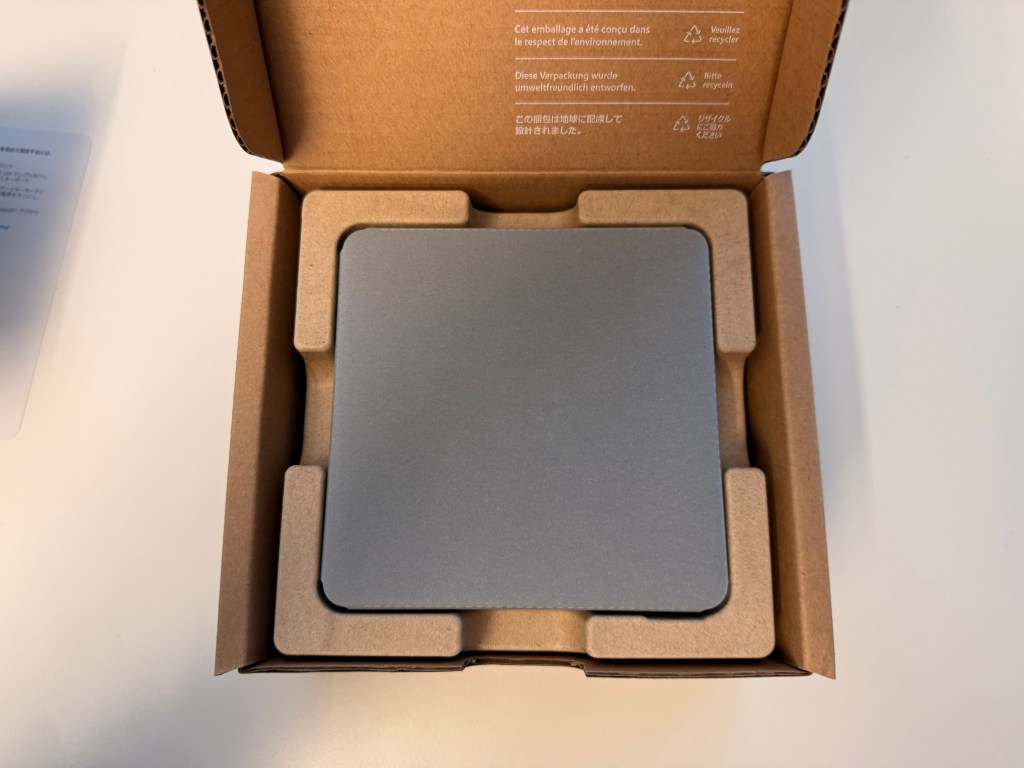
Under the device, you’ll find a power cord. Before the question comes up, I’m happy to answer it right away: The device does have a USB-C port which can be used to connect your display(s) and other accessories. However, the USB-C port can’t be used to power up the device.

So here it is, the device and the handy flyer with the most important information. Let’s connect and power on.
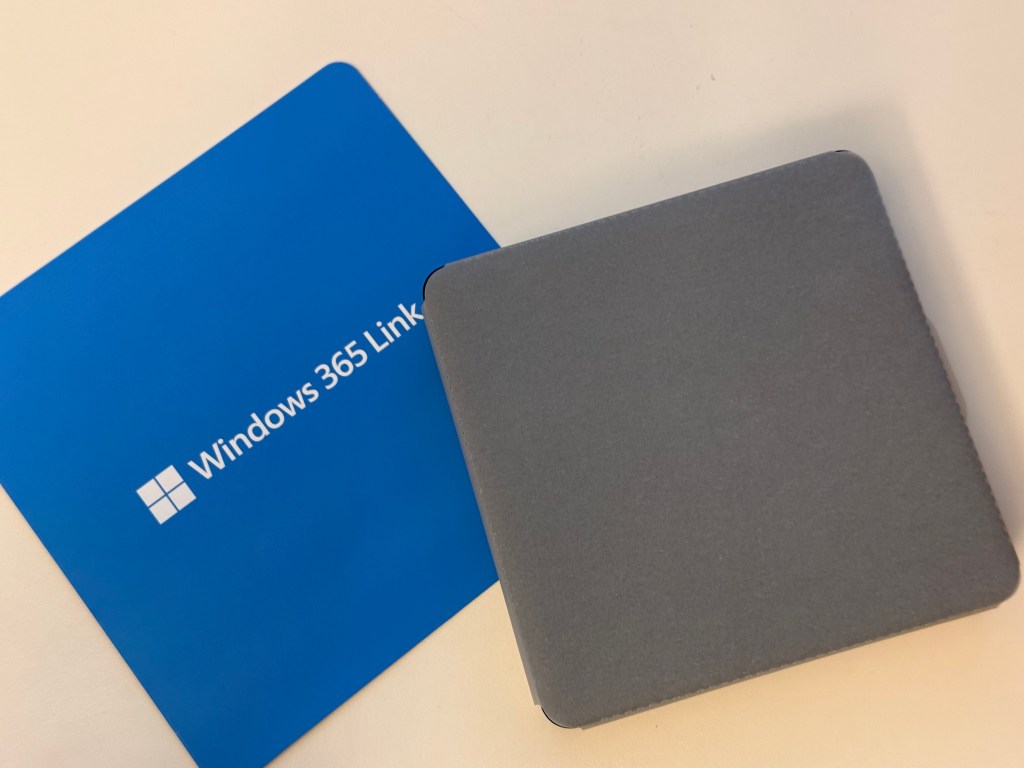
In my case, the end user did the setup as mentioned above, since we were really curious to see if someone could set it up without any help from IT. Since we have USB-C monitors everywhere, the setup for the end user was pretty easy. The person connected power, the USB-C wire for the display, and a USB dongle for the mouse/keyboard. That’s it! I mean, this is really great, since even in case of damage, our end users could replace the endpoint by themselves. Especially in organizations with shift workers and IT not present onsite 24/7, that’s a big and usually underrated advantage.
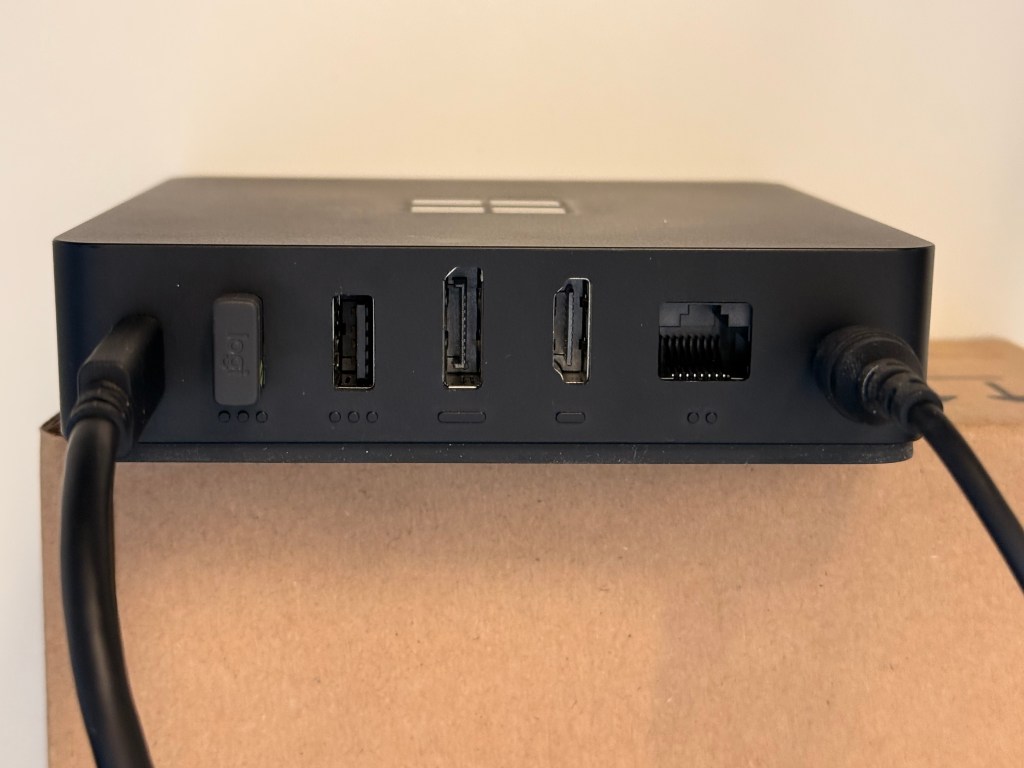
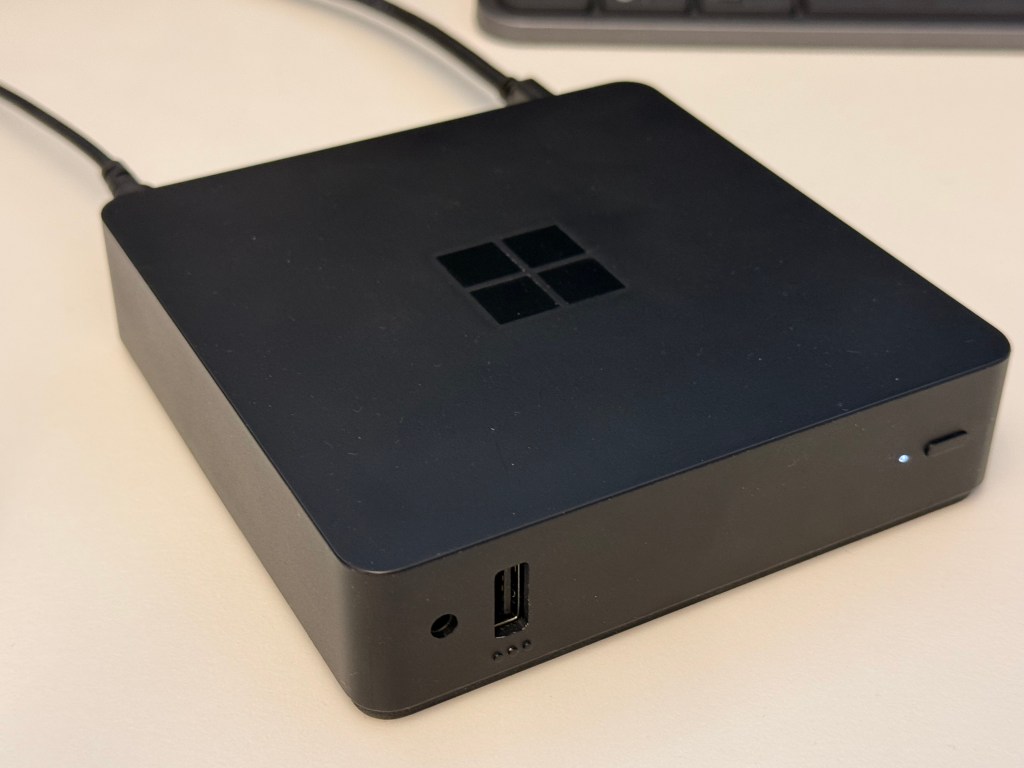
Here we see the device from the front. We powered it on and are ready to start using it.
Important to mention is the duration of this setup. It’s literally less then a minute. It may take a bit longer in case you still have a messy setup with different monitor connectors to connect separately and to use, but overall it is really that fast as mentioned before.
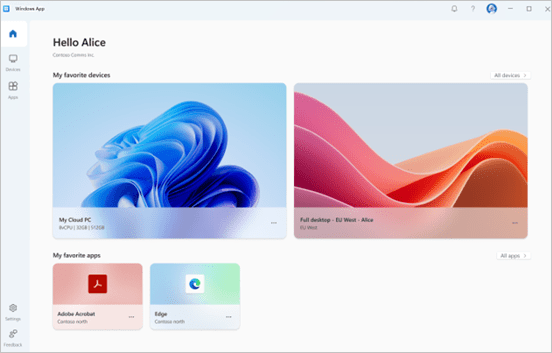
Heading to the user experience part, the user see the familiar Windows 11 look and feel. Since we have used AutoPilot for a long time, most of our end users are also familiar with the out-of-the-box experience and how to walk through the initial setup.
Since this post is related to the unboxing experience and use-cases, I’ll cover the technical setup process(which is pretty easy) in a later blog post.
So, let’s talk about interesting use-cases for Windows 365 Link:
Let me start with two of my favorites right now. One of these are so called hot-desks and usage of Windows 365 Link in meeting boxes. Meeting boxes are designed for a limited amount of people to have a confidential and/or quiet environment. Having a Windows 365 Link with a display and the ability of the users to connect to their personal Cloud PC is great. For organizations with a shared desk concept, hot-desks play a crucial role to enable workers to access a computer even if they forgot their at home, or the laptop is undergoing maintenance for example.
Not everyone in your organization has a Cloud PC? No worries, make yourself familiar with the Frontline Shared scenario of Windows 365. I covered this in my previous blog post here: Getting started with Windows 365 Frontline Shared Mode – Everything Digital Workplace

The second use-case for today’s post is all about frontline workers. There are a lot of organizations already adopting Cloud PCs for frontline workers. Why? Because Cloud PCs enable them to move around in the production area and use shared devices to get to their Cloud PC and move on from the same state they left off previously on another shared device.
Where is the deal here? Pretty simple. Previously, you had to take full-fledged Windows 11 hardware and lock it down to Boot to Cloud functionality to enable your frontline workers to work fluently. This usually meant not only higher efforts from the IT perspective (setup, configuration, troubleshooting), but also significantly higher cost efforts for the endpoints. And I haven’t started talking about the whole lifecycle stuff yet…

Conclusion:
Windows 365 Link brings a lot of new opportunities to enterprises. We covered the unboxing and just some of the use cases today. I’m confident this endpoint will help a lot of organizations drive the adoption of Cloud PCs and enable a totally new level of simplicity for their end users to access their Windows in the Cloud. I’m super excited to see how you’ll adopt Windows 365 Link in your organization. Meanwhile, I’m working on the blog post to cover the technical part in more detail. Make sure to watch the Ignite session with customers contributing live on stage to their first experiences with Windows 365 Link (you may spot me, by the way 🙂 ). Have fun and thanks for reading!





 Everything Digital Workplace
Leave a Reply