
Windows 365 Cloud Apps are officially in public preview. Today we’ll keep it short and cover everything most important for you to kickoff testing of this great feature.
Before we start with the configurations and setup, let’s cover some important topics.
What is Windows 365 Cloud Apps?
This is how Microsoft describes the feature: “Windows 365 Cloud Apps allow administrators to give users access to specific apps delivered from the cloud instead of a full Cloud PC. This is ideal for organizations that want to streamline app delivery, reduce overhead, and modernize their virtual desktop infrastructure (VDI) environments. Windows 365 Cloud Apps runs on Windows 365 Frontline Cloud PCs in shared mode. The Windows 365 Frontline licensing model enables shared Cloud PC access for shift-based or part-time workers, allowing unlimited users per license with one active session at a time. Since Windows 365 Cloud Apps streams only essential applications like Outlook or Word without loading a full desktop, it is ideal for task-based roles.Together, Frontline and Cloud Apps deliver a flexible, resource-optimized solution for dynamic workforces, especially in frontline environments like retail, healthcare, and government.”
You can find the full announcement here: Windows 365 Cloud Apps in public preview – Windows IT Pro Blog
Configuration and prerequisites:
Configuration is easy and straight forward, exactly as we expect it with Windows 365. First let’s create a new Provisioning Policy in the Windows 365 Portal within Intune.
Go to the Windows 365 pane in Intune -> Provisioning policies -> Create policy:
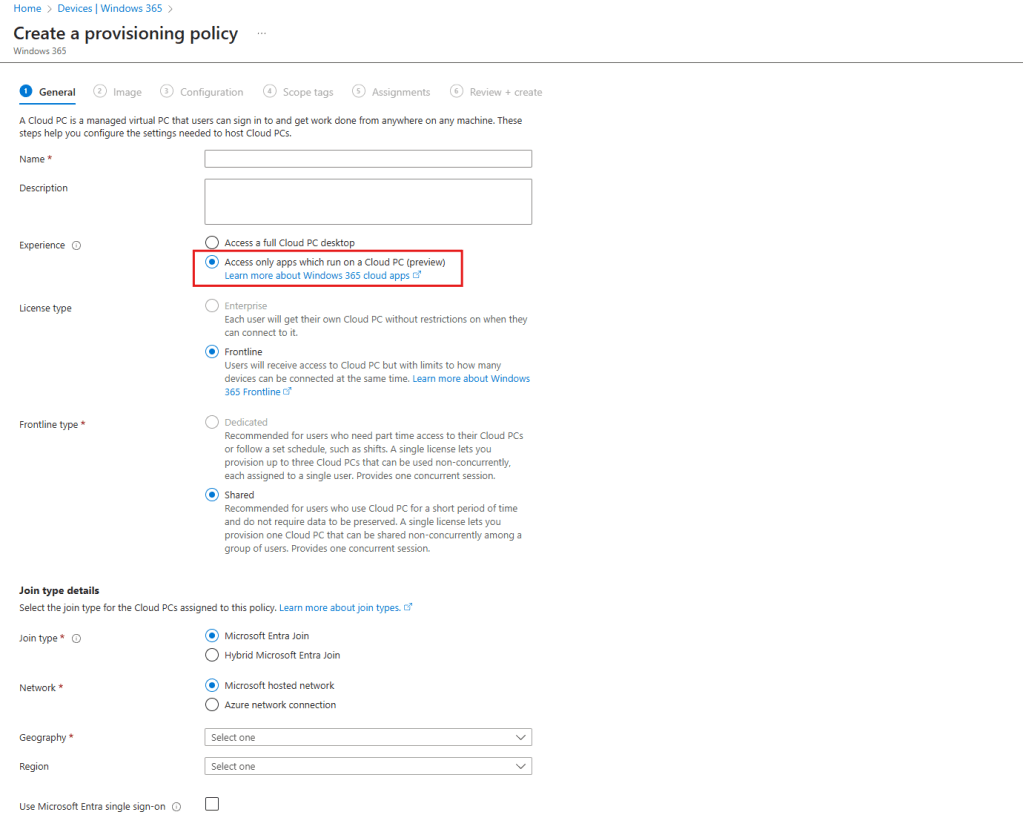
As you can see, there is a new option available for selection in the “Experience” area called “Access only apps which run on a Cloud PC (preview)”. By selecting, you’ll immediately see you can only select “Frontline” for License type and “Shared” for Frontline type. This is not a bug. This is intended as Cloud Apps are designed to be delivered from shared frontline CloudPC’s. If you’re not familiar with the concept of frontline shared, I recommend reading my older blog post here on frontline shared to understand it’s concept: Getting started with Windows 365 Frontline Shared Mode – Everything Digital Workplace
Let’s move on. Make your settings as desired(Region etc.) and click on Next. For testing we’ll move on with the Gallery image. Custom Images are supported too if they meet the min. requirements:
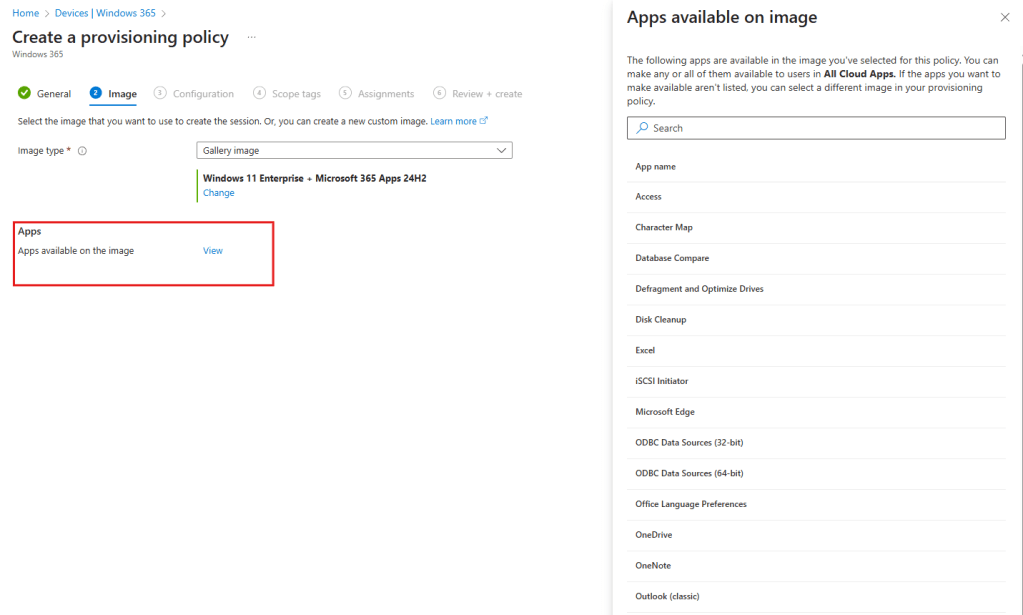
It’s important to make a note on the very nice implementation which let’s you immediately look up apps available on the image (either Gallery or Custom -> this works for both) you selected. Based on the image selected, you can immediately see what apps you can expect to be available to publish later. This also helps reduce possible mistakes of selecting the wrong image. Once you selected the right image and verified the apps you’re about to publish are part of it, click “Next”.
Limitations:
On the next pages, make you settings as usual. You can also add a Windows Autopilot device preparation policy. However, at the moment of writing this post the feature doesn’t support to publish apps that will be installed in addition via Autopilot DPP. So for now, make sure to use a custom image with the apps you need if the Gallery Image is not sufficient. It’s also worth noting that modern apps are not supported yet as well.
At the end make your assignments as usually for FLS and click on “Create”. Based on what you defined in your assignment, the provisioning of the necessary CloudPC’s will start in the background.
Return to the main Windows 365 overview and select the new tab “All Cloud Apps”.
Once the CloudPC’s are provisioned and are ready, you’ll see a full list of the previously discovered apps available for publishing them.
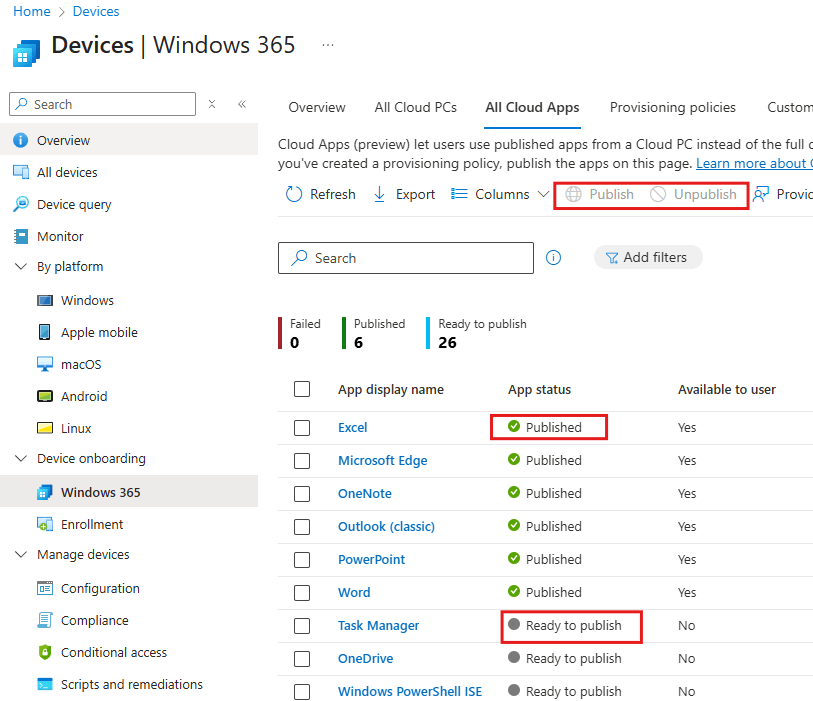
When clicking on the app itself, you can define an assignment of the target user group you want the app to be available for, adjust the display name if needed and define a command line to be passed to the app when started (if required).
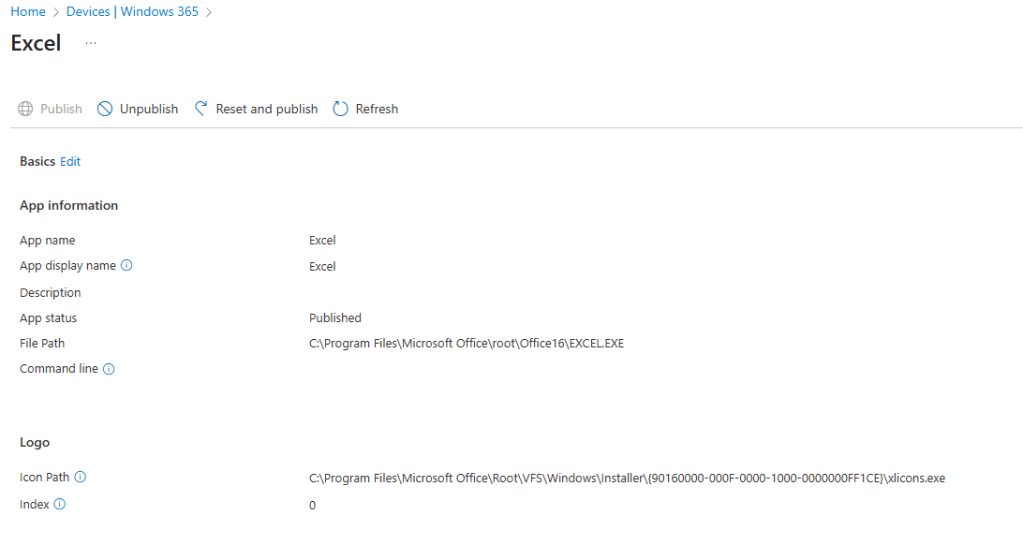
Once ready, you can publish the app (or unpublish if no longer needed).
End User Experience:
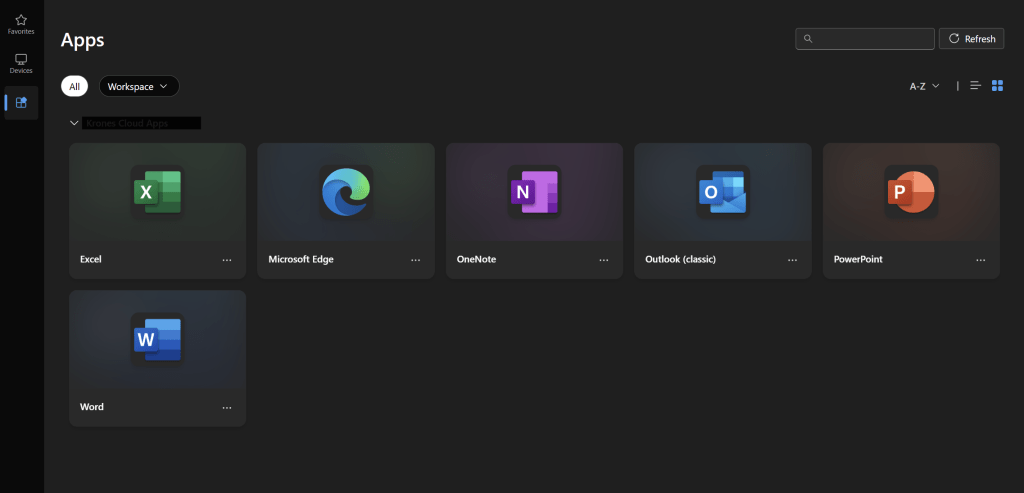
The end user experience is straight forward too. When they launch the Windows app they’ll see the “Apps” tab available with the apps you previously assigned and published. They can launch the apps and work with them nearly as they already used to do when accessing a regular Cloud PC.
Conclusion:
A lot of users love the experience to launch single apps, instead of the full desktop. Especially when their main activity is focused on the local device. By launching the apps separately, they can stay more productive and focused on the right tasks.
The availability of Cloud Apps as part of the Windows 365 service further shows Microsoft’s effort to expand the service and make sure customers and IT technicians have the right tools to deliver great capabilities and experience to the end users. If you ask me, this is just the beginning. More exciting features and capabilities are for sure already in development to continue this great success.
I’m wishing you fun with Cloud Apps. Thanks for reading!




 Everything Digital Workplace
Leave a Reply